How to Use NotebookLM to Study (Now Gemini Notebook): 2026 Guide
Disclosure: Some links in this post are affiliate links. If you buy through them, we may earn a commission at no extra cost to you. Learn more.
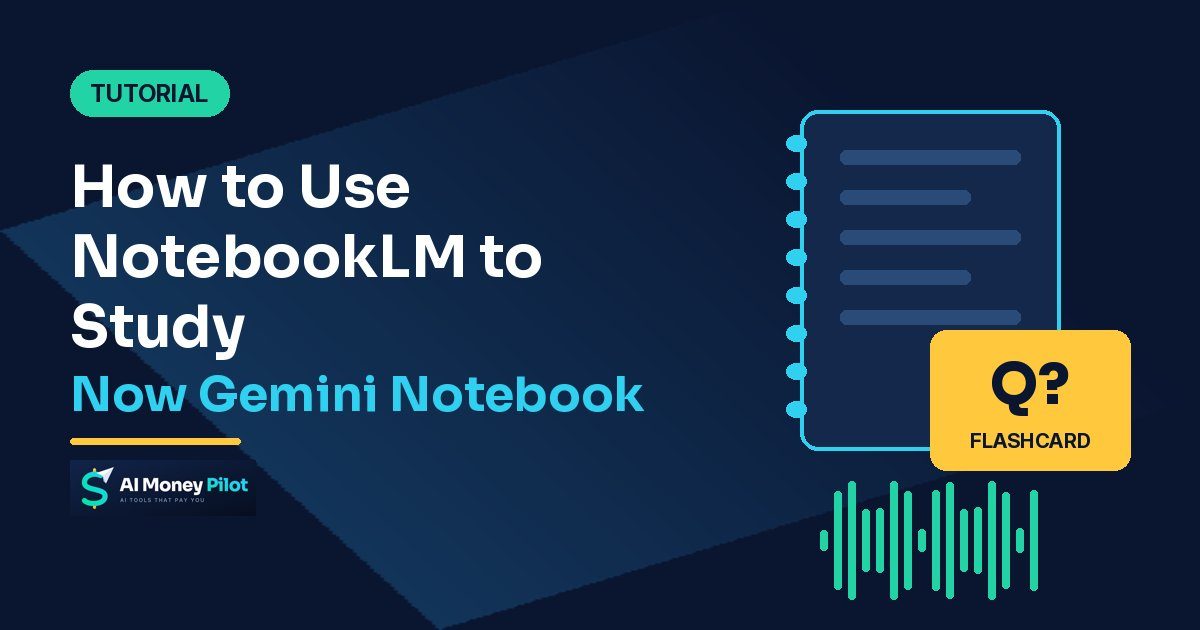
Short answer: To use NotebookLM to study, put your own class material (slides, PDFs, notes, lecture recordings, YouTube lectures) into one notebook per course. Then ask it questions about those sources, and use the Studio panel to turn them into flashcards, quizzes and Audio Overviews you can review on the go. It's free to start with a Google account.
One thing changed this year. Google renamed NotebookLM to Gemini Notebook on July 16, 2026, calling it "the same standalone product." Most people still search "NotebookLM," so we use both names here. The app now lives at notebook.google.com. Every limit and feature below was checked on Google's official help pages on October 27, 2026.
Why NotebookLM is good for studying
Most chatbots answer from everything they learned on the internet. NotebookLM (Gemini Notebook) answers from the sources you upload. Google's help center says that "the model uses the sources you upload to answer your questions or complete your requests."
For a student, that means:
- answers that follow your professor's slides, not a random website,
- summaries of each source in the Source Guide,
- study aids like flashcards, quizzes and audio built from your material.
It's still AI. Google warns that Audio Overviews "may contain inaccuracies," so treat everything it makes as a study partner, not the final word. Always check key facts against the source.
Step 1: Set up one notebook per course
- Open Gemini Notebook and sign in with your Google account.
- Create a new notebook and name it after the course, e.g. "BIO 101 – Midterm."
- Keep one notebook per exam or unit. Smaller, focused notebooks give more focused answers.
Can't get in? Google's FAQ says you need to verify your age in your Google Account, and the service follows the 180+ regions where the Gemini app is available. With a school email, your school's admin may need to turn it on.
How many notebooks you get depends on your plan. Google's plans page lists 100 notebooks per user on the free (Standard) plan, 200 with Google AI Plus and 500 with AI Pro.
Step 2: Add the right sources (and know the limits)
Select Add sources on the left. Google's help page lists these supported types:
- PDFs, Word (docx), PowerPoint (pptx), text, Markdown and CSV files
- Google Docs, Google Slides (up to 100 slides) and Google Sheets
- copied and pasted text, including your own notes
- web URLs and YouTube URLs of public videos
- audio files like MP3 and WAV, which is great for recorded lectures
- images, ePub files and eligible Google Play Books
Limits to plan around:
| Limit | Free (Standard) | AI Plus | AI Pro |
|---|---|---|---|
| Notebooks per user | 100 | 200 | 500 |
| Sources per notebook | 50 | 100 | 300 |
| Size per source | up to 500,000 words or 200 MB | same | same |
Study tips for sources:
- Add the syllabus first. It tells the AI what matters.
- Add lecture slides and your own notes as separate sources, so citations tell you where an answer came from.
- Only upload material you have the right to use. Google's own tip is to "avoid uploading documents you don't have rights to."
Step 3: Ask questions that actually help you learn
Use the chat to quiz yourself and fill gaps. Google suggests being specific: when several sources are selected, mentioning a source by name helps narrow the search. You can also tick only certain sources in the Source panel to chat with just those.
Prompts that work well for studying:
- "Using only Week 3 slides, explain the Krebs cycle in 5 simple steps."
- "What are the 10 terms from the syllabus most likely to appear on the midterm? Define each in one sentence."
- "Compare how Lecture 4 and the textbook chapter describe supply shocks. Where do they disagree?"
- "Give me 3 exam-style essay questions from these sources, then grade my answer to the first one."
Then click the citations and read the original passage. That one habit turns a summary into real studying. For more prompt patterns, see our guide on how to write ChatGPT prompts. The same rules work here.
Step 4: Make flashcards and quizzes
This is the feature most students come for. From Google's flashcards and quizzes help page:
- In the Studio panel, select Flashcards or Quizzes. Use the pencil icon to customize first.
- Pick a difficulty: easy, medium or hard.
- Add a prompt to set the focus, e.g. "only chapter 5 vocabulary" or "cause-and-effect questions."
- Choose how many: fewer, standard or more.
While you study:
- Hit Explain on any card or answer you don't get.
- Mark flashcards Got it! or Missed it! It remembers your progress.
- At the end, practice again with Only cards you missed.
- Stuck on a quiz question? Use Hint.
- You can download flashcards as a CSV file to import into another app.
A routine that works: make a "hard" quiz the night after a lecture, then a "missed cards only" round two days later. Spreading short reviews over several days keeps the material fresh before the exam.
Step 5: Turn your notes into a podcast with Audio Overviews
Audio Overviews are AI-hosted audio summaries of your sources. They're perfect for the bus or the gym. Google's Audio Overview help page lists four formats:
- Deep Dive (default): two hosts unpack and connect topics in a lively conversation.
- The Brief: one speaker gives the key takeaways in under two minutes.
- The Critique: two hosts give constructive feedback, which is useful on your own essay draft.
- The Debate: two hosts argue different sides, great for essay prep.
You can also choose the language, set the length (Shorter, Default or Longer, English only) and add a prompt such as "explain it for a first-year student" or "focus on the formulas." While it plays, you can keep asking questions and open citations.
Prefer visuals? Google also documents Video Overviews built from your sources.
Free limits: how far can you go without paying?
Gemini Notebook uses compute-based usage limits. Heavier prompts and features use more of your quota. According to Google's usage limits page:
- Your quota refreshes every 5 hours until you reach a weekly limit.
- Google AI Plus gives 2x the standard limits and AI Pro gives 4x.
- Check where you stand under Settings → Usage.
- Out of quota? On the web you can choose Generate later, which may take a couple of hours.
For most students, the free plan is enough if you keep notebooks focused and don't regenerate the same Audio Overview again and again.
Privacy note: Google says your data "is not used to train Gemini Notebook unless you provide feedback," and that school (Workspace for Education) accounts' content isn't reviewed by humans or used to train AI models.
A simple weekly study plan with NotebookLM
| Day | What to do | Time |
|---|---|---|
| After each lecture | Add slides + your notes; ask "what were the 5 key ideas?" | 10 min |
| Next day | Generate a medium quiz; review wrong answers with Explain | 15 min |
| Commute | Listen to a Brief or Deep Dive Audio Overview | 2–15 min |
| End of week | "Only cards you missed" flashcard round | 10 min |
| Before the exam | Ask for exam-style questions, write answers, ask for feedback | 30 min |
Writing an essay from your research? Do the thinking yourself, then polish the language with a checker like Grammarly. Want a one-page revision poster? A free template in Canva works well. And if your school uses AI checkers, read how AI detectors work first.
FAQ
Is NotebookLM the same as Gemini Notebook?
Yes. Google renamed NotebookLM to Gemini Notebook on July 16, 2026, and describes it as the same standalone product with deeper Google integration.
Is NotebookLM free for students?
Yes, there's a free (Standard) plan with 100 notebooks and 50 sources per notebook. Usage refreshes every 5 hours up to a weekly limit. Paid Google AI plans raise those limits.
Can NotebookLM make flashcards and quizzes?
Yes. In the Studio panel choose Flashcards or Quizzes, set the difficulty and number, and track "Got it" or "Missed it." You can also download flashcards as a CSV file.
Can I use YouTube lectures in NotebookLM?
Yes. Google lists YouTube URLs of public videos as a supported source type, along with audio files like MP3 and WAV.
How many sources can I add to one notebook?
50 on the free plan, 100 with Google AI Plus and 300 with AI Pro. Each source can be up to 500,000 words or 200 MB.
NotebookLM vs ChatGPT for studying: which is better?
NotebookLM is built to answer from your own uploaded sources, with built-in flashcards, quizzes and Audio Overviews. A general chatbot is better for open-ended explanations. Many students use both. See our ChatGPT Free vs Go vs Plus guide and ChatGPT vs Claude vs Gemini.
Sources
- Google Blog: NotebookLM is now Gemini Notebook (July 16, 2026)
- Gemini Notebook Help: Add or discover new sources for your notebook
- Gemini Notebook Help: Learn about Gemini Notebook's plans
- Gemini Notebook Help: Manage your usage limits
- Gemini Notebook Help: Generate Flashcards or Quizzes
- Gemini Notebook Help: Generate Audio Overview
- Gemini Notebook Help: Generate Video Overviews
- Gemini Notebook Help: Frequently asked questions